
How to Recover Unsaved Answers During an Online Exam?
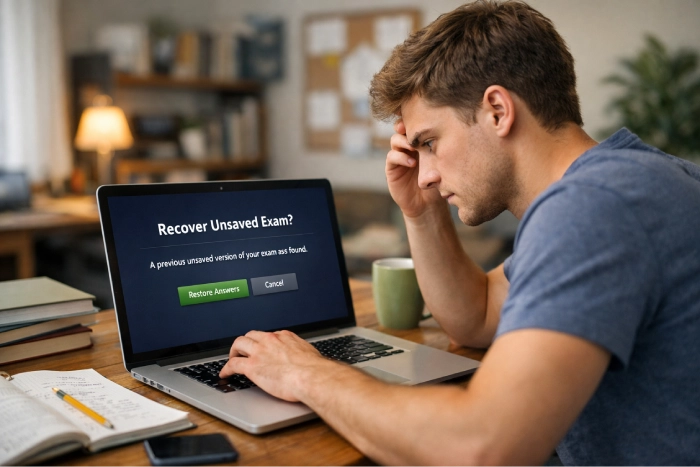
If you need to recover unsaved answers, it is important to stay calm and respond quickly. Do not refresh the page, exit the exam,or turn off the computer. The first step involves determining whether the autosave facility in the platform has saved your response.
Look for a “Saved” message or checkmark before taking further action. If your connection is the main problem, read what happens if your internet drops mid-exam. This guide focuses on whether your written answers survived and what you can safely do next. Contact your exam support team if the saving status remains unclear.
The First 60 Seconds — Do These in Order
When you notice something missing, protect your exam session. Stay calm and follow these steps to avoid losing more work.
- Do not refresh or close the exam. Avoid restarting your browser or computer, as this may clear session data.
- Check the saving indicator. Look for “Saving…,” “Saved,” or a checkmark near the answer field.
- Take a screenshot if permitted. Take a screenshot only if your exam allows you to do this.
- Stay on the current question. Keep working with the current question. Do not exit the page while verifying whether your response has been saved.
- Record the question number and time. Write down the question number and time. This may help your support staff in finding out about unsaved answers.
- Contact approved support. Explain the problem to your institution’s authorized support team.
Remember, an autosave indicator does not always confirm that your complete answer was sent to the server. If your unsaved answers remain unclear, keep the session open and act according to your institution’s guidelines.
How Autosave Actually Works on Each Platform
Autosave works differently across exam platforms.
| Platform | Does it autosave? | When does it save? | The catch |
| Canvas | Yes | During the course of the quiz, while being online. | Canvas saves quiz answers as students proceed, and timed quizzes may automatically submit when time expires. During disconnection, the latest answer may not save. This depends on the quiz type and situation. |
| Brightspace | Yes | The default save time for unsaved answers is every 30 seconds for most question types. | Include the warning on written-response questions with a formatting toolbar if verified in Brightspace documentation. |
| Moodle | Usually | Answers get saved automatically based on how quiz settings are configured. | Quiz responses save automatically if enabled. By default, saves occur every two minutes, depending on settings. |
| Respondus LockDown Browser | Depends | LockDown Browser provides the quiz using your institution’s learning platform. | Explain that LockDown Browser delivers quizzes through a learning platform. |
| Examplify/ExamSoft | Designed for offline resilience | The answers provided in the exam are stored locally during the exam. | Examplify saves files every 60 seconds and creates backups. The completed exam file remains stored until upload, but students should confirm successful upload. |
| Google Forms | Often, for signed-in users | Draft progress can save automatically when online. | Google Forms: Draft responses can autosave for up to 30 days when you are signed in. Autosave does not work offline, and the form owner may disable it. Reopen the form using the same Google Account to check for a saved draft. |
Saving depends on the platform, question type, connection, and testing conditions. Never assume the latest answer is saved securely.
Browser-Level Recovery — and Its Limits
Some simple options in a normal browser may help you recover unsaved answers. Their effectiveness varies depending on the browser, reason for the crash, and whether your answer is kept in the cache.
- Ctrl+Z (for Windows) or Cmd+Z (for Mac): Restore recently deleted text in the currently opened answer box, provided the history is still available.
- Back button: Clicking Back button if it will not cause losing your current progress.
- Ctrl+Shift+T (for Windows) or Cmd+Shift+T (for Mac): Open the last closed tab.
- DevTools > Application > Local Storage: In a normal browser, you can use DevTools to check for website stored data. However, exam answers might not be saved in it.
Inside a lockdown browser, all the mentioned actions are disabled by design. Using recovery extensions and/or opening DevTools in a monitored exam is not allowed and might lead to a warning for violation of academic integrity policies. Do not attempt to use them to recover unsaved answers during a proctored exam.
Recovering Work You Drafted Outside the Exam
Writing out your answers in other programs can minimize the chances of losing them. These include Microsoft Word, Google Docs, and Notepad that save data into different files or history based on the software used. This can help you recover unsaved answers if an exam session crashes, provided you saved or recovered the draft. Enable autosave where available to protect your work and reduce the risk of losing recent changes.
In Microsoft Word, reopen the software and do not touch any buttons yet. Editing may overwrite the version you can recover. Click File → Info → Manage Document and check for a recoverable AutoRecovery version. AutoRecovery time varies according to Word’s settings but typically lasts for about ten minutes.Check your institution’s rules before drafting elsewhere, and save your work regularly whenever permitted.
When the Answer Is Genuinely Gone
In some cases, your answers may not be recoverable from the browser and/or the exam site. If your unsaved answers are missing and you need proof for it, note the question number, the timestamp of the question, screenshots (with permission), the specific error message, and the answers you submit so far.
Report the issue right away through the approved channel – it could be your instructor, teaching assistant, invigilator, or exam helpdesk. The system log could become difficult to retrieve over time. Specify the response that didn’t save, the time when you realized about it, and the steps you took.
Depending on the circumstances and university/college policies, the solution can range from giving you additional time to take another attempt to reopening the submission submission window, or a mark review. If your work didn’t save, explain the issue honestly and provide the evidence. Staff will decide what action is appropriate.
Prevention — 5 Habits That Make Recovery Unnecessary
A few simple practices can help prevent losing exam responses. They protect your work and identify problems with saving before time expires.
- If your exam guidelines permit it, write your lengthy answers using Word or any other allowed editor and then copy and paste them in your exam.
- Click out of the rich-text boxes. In some platforms, the answers may be saved only after clicking out of the text box.
- Go to the next question. Navigation through questions might cause the system to save your answers.
- Check your answers frequently. Try to develop a habit of checking whether your answers are visible and the autosave message is seen every five to ten minutes.
- Check flagged questions before you submit. Use the review/flag list to revisit unanswered or incomplete questions.
These simple practices cannot provide any guarantees that you will be able to recover your unsaved answers; however, they minimize the risks of losing your answers.
Frequently Asked Questions
Do online exams save answers automatically?
Usually, yes, but it depends on the platform and question type. Multiple-choice answers often save automatically, but longer responses may not. Check the autosave indicator on Canvas.
Why did my essay answer disappear?
A rich-text editor may fail to autosave due to a timeout connection, so your answer didn’t save. In Brightspace, written responses with a formatting toolbar save when you click outside the field.
What if my exam timed out before I submitted?
This rarely happens; the systems automatically submit saved answers when timed out. Report the problem immediately and mention the exact time.Timing what the logs show.
Can I recover unsaved answers after the exam closes?
In most cases, it is not possible to recover unsaved answers when the window closes. When your exam ends without saving any drafts, report the problem and provide your evidence.
Conclusion
Most saves work when you pause instead of panic. To recover unsaved answers, draft offline and save regularly. Whether you use Canvas or Brightspace, check your settings. Contact us if you need support. Rules vary by institution — follow your own course instructions.